
36 KiB
Laravel Horizon
- Introduction
- Installation
- Configuration
- Dashboard Authorization
- Max Job Attempts
- Job Timeout
- Job Backoff
- Silenced Jobs
- Balancing Strategies
- Auto Balancing
- Simple Balancing
- No Balancing
- Upgrading Horizon
- Running Horizon
- Deploying Horizon
- Tags
- Notifications
- Metrics
- Deleting Failed Jobs
- Clearing Jobs From Queues
Introduction
Before digging into Laravel Horizon, you should familiarize yourself with Laravel's base queue services. Horizon augments Laravel's queue with additional features that may be confusing if you are not already familiar with the basic queue features offered by Laravel.
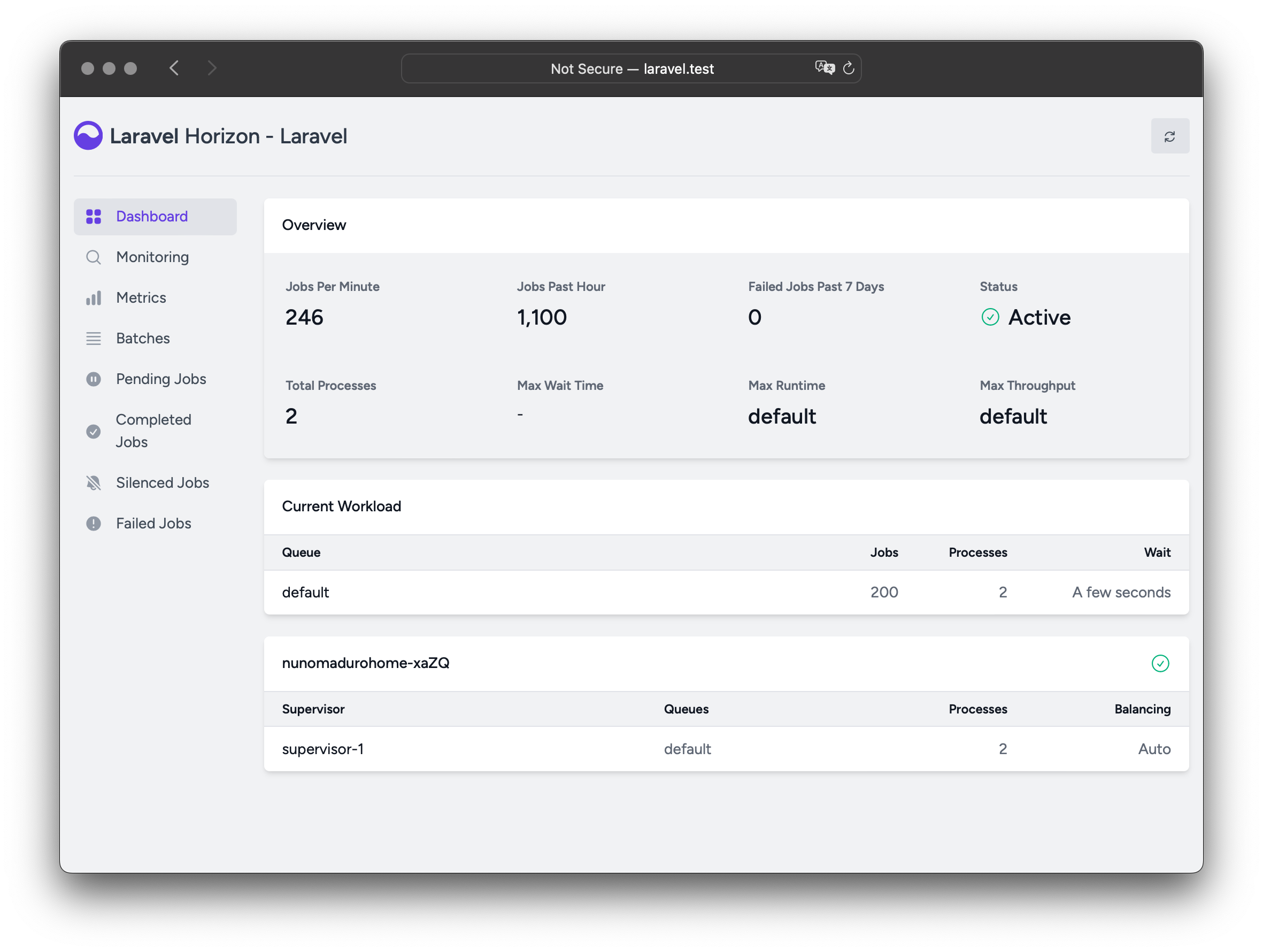
Laravel Horizon provides a beautiful dashboard and code-driven configuration for your Laravel powered Redis queues. Horizon allows you to easily monitor key metrics of your queue system such as job throughput, runtime, and job failures.
When using Horizon, all of your queue worker configuration is stored in a single, simple configuration file. By defining your application's worker configuration in a version controlled file, you may easily scale or modify your application's queue workers when deploying your application.
Installation
Laravel Horizon requires that you use Redis to power your
queue. Therefore, you should ensure that your queue connection is set to
redis in your application's config/queue.php configuration file.
You may install Horizon into your project using the Composer package manager:
1composer require laravel/horizon


composer require laravel/horizon
After installing Horizon, publish its assets using the horizon:install
Artisan command:
1php artisan horizon:install


php artisan horizon:install
Configuration
After publishing Horizon's assets, its primary configuration file will be
located at config/horizon.php. This configuration file allows you to
configure the queue worker options for your application. Each configuration
option includes a description of its purpose, so be sure to thoroughly explore
this file.
Horizon uses a Redis connection named horizon internally. This Redis
connection name is reserved and should not be assigned to another Redis
connection in the database.php configuration file or as the value of the
use option in the horizon.php configuration file.
Environments
After installation, the primary Horizon configuration option that you should
familiarize yourself with is the environments configuration option. This
configuration option is an array of environments that your application runs on
and defines the worker process options for each environment. By default, this
entry contains a production and local environment. However, you are free
to add more environments as needed:
 1'environments' => [

 2    'production' => [

 3        'supervisor-1' => [

 4            'maxProcesses' => 10,

 5            'balanceMaxShift' => 1,

 6            'balanceCooldown' => 3,

 7        ],

 8    ],

 9

10    'local' => [

11        'supervisor-1' => [

12            'maxProcesses' => 3,

13        ],

14    ],

15],


'environments' => [
    'production' => [
        'supervisor-1' => [
            'maxProcesses' => 10,
            'balanceMaxShift' => 1,
            'balanceCooldown' => 3,
        ],
    ],

    'local' => [
        'supervisor-1' => [
            'maxProcesses' => 3,
        ],
    ],
],
You may also define a wildcard environment (*) which will be used when no
other matching environment is found:
1'environments' => [

2    // ...

3

4    '*' => [

5        'supervisor-1' => [

6            'maxProcesses' => 3,

7        ],

8    ],

9],


'environments' => [
    // ...

    '*' => [
        'supervisor-1' => [
            'maxProcesses' => 3,
        ],
    ],
],
When you start Horizon, it will use the worker process configuration options
for the environment that your application is running on. Typically, the
environment is determined by the value of the APP_ENV environment
variable. For
example, the default local Horizon environment is configured to start three
worker processes and automatically balance the number of worker processes
assigned to each queue. The default production environment is configured to
start a maximum of 10 worker processes and automatically balance the number of
worker processes assigned to each queue.
You should ensure that the environments portion of your horizon
configuration file contains an entry for each
environment on which you
plan to run Horizon.
Supervisors
As you can see in Horizon's default configuration file, each environment can
contain one or more "supervisors". By default, the configuration file defines
this supervisor as supervisor-1; however, you are free to name your
supervisors whatever you want. Each supervisor is essentially responsible for
"supervising" a group of worker processes and takes care of balancing worker
processes across queues.
You may add additional supervisors to a given environment if you would like to define a new group of worker processes that should run in that environment. You may choose to do this if you would like to define a different balancing strategy or worker process count for a given queue used by your application.
Maintenance Mode
While your application is in maintenance
mode, queued jobs will not be
processed by Horizon unless the supervisor's force option is defined as
true within the Horizon configuration file:
1'environments' => [

2    'production' => [

3        'supervisor-1' => [

4            // ...

5            'force' => true,

6        ],

7    ],

8],


'environments' => [
    'production' => [
        'supervisor-1' => [
            // ...
            'force' => true,
        ],
    ],
],
Default Values
Within Horizon's default configuration file, you will notice a defaults
configuration option. This configuration option specifies the default values
for your application's supervisors. The supervisor's default configuration
values will be merged into the supervisor's configuration for each
environment, allowing you to avoid unnecessary repetition when defining your
supervisors.
Dashboard Authorization
The Horizon dashboard may be accessed via the /horizon route. By default,
you will only be able to access this dashboard in the local environment.
However, within your app/Providers/HorizonServiceProvider.php file, there is
an authorization gate definition. This
authorization gate controls access to Horizon in non-local environments.
You are free to modify this gate as needed to restrict access to your Horizon
installation:
 1/**

 2 * Register the Horizon gate.

 3 *

 4 * This gate determines who can access Horizon in non-local environments.

 5 */

 6protected function gate(): void

 7{

 8    Gate::define('viewHorizon', function (User $user) {

 9        return in_array($user->email, [

10            '[[email protected]](/cdn-cgi/l/email-protection)',

11        ]);

12    });

13}


/**
 * Register the Horizon gate.
 *
 * This gate determines who can access Horizon in non-local environments.
 */
protected function gate(): void
{
    Gate::define('viewHorizon', function (User $user) {
        return in_array($user->email, [
            '[[email protected]](/cdn-cgi/l/email-protection)',
        ]);
    });
}
Alternative Authentication Strategies
Remember that Laravel automatically injects the authenticated user into the
gate closure. If your application is providing Horizon security via another
method, such as IP restrictions, then your Horizon users may not need to
"login". Therefore, you will need to change function (User $user) closure
signature above to function (User $user = null) in order to force Laravel to
not require authentication.
Max Job Attempts
Before refining these options, make sure you are familiar with Laravel's default queue services and the concept of 'attempts'.
You can define the maximum number of attempts a job can consume within a supervisor's configuration:
1'environments' => [

2    'production' => [

3        'supervisor-1' => [

4            // ...

5            'tries' => 10,

6        ],

7    ],

8],


'environments' => [
    'production' => [
        'supervisor-1' => [
            // ...
            'tries' => 10,
        ],
    ],
],
This option is similar to the --tries option when using the Artisan command
to process queues.
Adjusting the tries option is essential when using middlewares such as
WithoutOverlapping or RateLimited because they consume attempts. To handle
this, adjust the tries configuration value either at the supervisor level or
by defining the $tries property on the job class.
If you don't set the tries option, Horizon defaults to a single attempt,
unless the job class defines $tries, which takes precedence over the Horizon
configuration.
Setting tries or $tries to 0 allows unlimited attempts, which is ideal
when the number of attempts is uncertain. To prevent endless failures, you can
limit the number of exceptions allowed by setting the $maxExceptions
property on the job class.
Job Timeout
Similarly, you can set a timeout value at the supervisor level, which
specifies how many seconds a worker process can run a job before it's
forcefully terminated. Once terminated, the job will either be retried or
marked as failed, depending on your queue configuration:
1'environments' => [

2    'production' => [

3        'supervisor-1' => [

4            // ...¨

5            'timeout' => 60,

6        ],

7    ],

8],


'environments' => [
    'production' => [
        'supervisor-1' => [
            // ...¨
            'timeout' => 60,
        ],
    ],
],
The timeout value should always be at least a few seconds shorter than the
retry_after value defined in your config/queue.php configuration file.
Otherwise, your jobs may be processed twice.
Job Backoff
You can define the backoff value at the supervisor level to specify how long
Horizon should wait before retrying a job that encounters an unhandled
exception:
1'environments' => [

2    'production' => [

3        'supervisor-1' => [

4            // ...

5            'backoff' => 10,

6        ],

7    ],

8],


'environments' => [
    'production' => [
        'supervisor-1' => [
            // ...
            'backoff' => 10,
        ],
    ],
],
You may also configure "exponential" backoffs by using an array for the
backoff value. In this example, the retry delay will be 1 second for the
first retry, 5 seconds for the second retry, 10 seconds for the third retry,
and 10 seconds for every subsequent retry if there are more attempts
remaining:
1'environments' => [

2    'production' => [

3        'supervisor-1' => [

4            // ...

5            'backoff' => [1, 5, 10],

6        ],

7    ],

8],


'environments' => [
    'production' => [
        'supervisor-1' => [
            // ...
            'backoff' => [1, 5, 10],
        ],
    ],
],
Silenced Jobs
Sometimes, you may not be interested in viewing certain jobs dispatched by
your application or third-party packages. Instead of these jobs taking up
space in your "Completed Jobs" list, you can silence them. To get started, add
the job's class name to the silenced configuration option in your
application's horizon configuration file:
1'silenced' => [

2    App\Jobs\ProcessPodcast::class,

3],


'silenced' => [
    App\Jobs\ProcessPodcast::class,
],
Alternatively, the job you wish to silence can implement the
Laravel\Horizon\Contracts\Silenced interface. If a job implements this
interface, it will automatically be silenced, even if it is not present in the
silenced configuration array:
1use Laravel\Horizon\Contracts\Silenced;

2

3class ProcessPodcast implements ShouldQueue, Silenced

4{

5    use Queueable;

6

7    // ...

8}


use Laravel\Horizon\Contracts\Silenced;

class ProcessPodcast implements ShouldQueue, Silenced
{
    use Queueable;

    // ...
}
Balancing Strategies
Each supervisor can process one or more queues but unlike Laravel's default
queue system, Horizon allows you to choose from three worker balancing
strategies: auto, simple, and false.
Auto Balancing
The auto strategy, which is the default strategy, adjusts the number of
worker processes per queue based on the current workload of the queue. For
example, if your notifications queue has 1,000 pending jobs while your
default queue is empty, Horizon will allocate more workers to your
notifications queue until the queue is empty.
When using the auto strategy, you may also configure the minProcesses and
maxProcesses configuration options:
minProcessesdefines the minimum number of worker processes per queue. This value must be greater than or equal to 1.maxProcessesdefines the maximum total number of worker processes Horizon may scale up to across all queues. This value should typically be greater than the number of queues multiplied by theminProcessesvalue. To prevent the supervisor from spawning any processes, you may set this value to 0.
For example, you may configure Horizon to maintain at least one process per queue and scale up to a total of 10 worker processes:
 1'environments' => [

 2    'production' => [

 3        'supervisor-1' => [

 4            'connection' => 'redis',

 5            'queue' => ['default', 'notifications'],

 6            'balance' => 'auto',

 7            'autoScalingStrategy' => 'time',

 8            'minProcesses' => 1,

 9            'maxProcesses' => 10,

10            'balanceMaxShift' => 1,

11            'balanceCooldown' => 3,

12        ],

13    ],

14],


'environments' => [
    'production' => [
        'supervisor-1' => [
            'connection' => 'redis',
            'queue' => ['default', 'notifications'],
            'balance' => 'auto',
            'autoScalingStrategy' => 'time',
            'minProcesses' => 1,
            'maxProcesses' => 10,
            'balanceMaxShift' => 1,
            'balanceCooldown' => 3,
        ],
    ],
],
The autoScalingStrategy configuration option determines how Horizon will
assign more worker processes to queues. You can choose between two strategies:
- The
timestrategy will assign workers based on the total estimated amount of time it will take to clear the queue. - The
sizestrategy will assign workers based on the total number of jobs on the queue.
The balanceMaxShift and balanceCooldown configuration values determine how
quickly Horizon will scale to meet worker demand. In the example above, a
maximum of one new process will be created or destroyed every three seconds.
You are free to tweak these values as necessary based on your application's
needs.
Queue Priorities and Auto Balancing
When using the auto balancing strategy, Horizon does not enforce strict
priority between queues. The order of queues in a supervisor's configuration
does not affect how worker processes are assigned. Instead, Horizon relies on
the selected autoScalingStrategy to dynamically allocate worker processes
based on queue load.
For example, in the following configuration, the high queue is not prioritized over the default queue, despite appearing first in the list:
 1'environments' => [

 2    'production' => [

 3        'supervisor-1' => [

 4            // ...

 5            'queue' => ['high', 'default'],

 6            'minProcesses' => 1,

 7            'maxProcesses' => 10,

 8        ],

 9    ],

10],


'environments' => [
    'production' => [
        'supervisor-1' => [
            // ...
            'queue' => ['high', 'default'],
            'minProcesses' => 1,
            'maxProcesses' => 10,
        ],
    ],
],
If you need to enforce a relative priority between queues, you may define multiple supervisors and explicitly allocate processing resources:
 1'environments' => [

 2    'production' => [

 3        'supervisor-1' => [

 4            // ...

 5            'queue' => ['default'],

 6            'minProcesses' => 1,

 7            'maxProcesses' => 10,

 8        ],

 9        'supervisor-2' => [

10            // ...

11            'queue' => ['images'],

12            'minProcesses' => 1,

13            'maxProcesses' => 1,

14        ],

15    ],

16],


'environments' => [
    'production' => [
        'supervisor-1' => [
            // ...
            'queue' => ['default'],
            'minProcesses' => 1,
            'maxProcesses' => 10,
        ],
        'supervisor-2' => [
            // ...
            'queue' => ['images'],
            'minProcesses' => 1,
            'maxProcesses' => 1,
        ],
    ],
],
In this example, the default queue can scale up to 10 processes, while the
images queue is limited to one process. This configuration ensures that your
queues can scale independently.
When dispatching resource-intensive jobs, it's sometimes best to assign them
to a dedicated queue with a limited maxProcesses value. Otherwise, these
jobs could consume excessive CPU resources and overload your system.
Simple Balancing
The simple strategy distributes worker processes evenly across the specified
queues. With this strategy, Horizon does not automatically scale the number of
worker processes. Rather, it uses a fixed number of processes:
 1'environments' => [

 2    'production' => [

 3        'supervisor-1' => [

 4            // ...

 5            'queue' => ['default', 'notifications'],

 6            'balance' => 'simple',

 7            'processes' => 10,

 8        ],

 9    ],

10],


'environments' => [
    'production' => [
        'supervisor-1' => [
            // ...
            'queue' => ['default', 'notifications'],
            'balance' => 'simple',
            'processes' => 10,
        ],
    ],
],
In the example above, Horizon will assign 5 processes to each queue, splitting the total of 10 evenly.
If you'd like to control the number of worker processes assigned to each queue individually, you can define multiple supervisors:
 1'environments' => [

 2    'production' => [

 3        'supervisor-1' => [

 4            // ...

 5            'queue' => ['default'],

 6            'balance' => 'simple',

 7            'processes' => 10,

 8        ],

 9        'supervisor-notifications' => [

10            // ...

11            'queue' => ['notifications'],

12            'balance' => 'simple',

13            'processes' => 2,

14        ],

15    ],

16],


'environments' => [
    'production' => [
        'supervisor-1' => [
            // ...
            'queue' => ['default'],
            'balance' => 'simple',
            'processes' => 10,
        ],
        'supervisor-notifications' => [
            // ...
            'queue' => ['notifications'],
            'balance' => 'simple',
            'processes' => 2,
        ],
    ],
],
With this configuration, Horizon will assign 10 processes to the default
queue and 2 processes to the notifications queue.
No Balancing
When the balance option is set to false, Horizon processes queues strictly
in the order they're listed, similar to Laravel's default queue system.
However, it will still scale the number of worker processes if jobs begin to
accumulate:
 1'environments' => [

 2    'production' => [

 3        'supervisor-1' => [

 4            // ...

 5            'queue' => ['default', 'notifications'],

 6            'balance' => false,

 7            'minProcesses' => 1,

 8            'maxProcesses' => 10,

 9        ],

10    ],

11],


'environments' => [
    'production' => [
        'supervisor-1' => [
            // ...
            'queue' => ['default', 'notifications'],
            'balance' => false,
            'minProcesses' => 1,
            'maxProcesses' => 10,
        ],
    ],
],
In the example above, jobs in the default queue are always prioritized over
jobs in the notifications queue. For instance, if there are 1,000 jobs in
default and only 10 in notifications, Horizon will fully process all
default jobs before handling any from notifications.
You can control Horizon's ability to scale worker processes using the
minProcesses and maxProcesses options:
minProcessesdefines the minimum number of worker processes in total. This value must be greater than or equal to 1.maxProcessesdefines the maximum total number of worker processes Horizon may scale up to.
Upgrading Horizon
When upgrading to a new major version of Horizon, it's important that you carefully review the upgrade guide.
Running Horizon
Once you have configured your supervisors and workers in your application's
config/horizon.php configuration file, you may start Horizon using the
horizon Artisan command. This single command will start all of the
configured worker processes for the current environment:
1php artisan horizon


php artisan horizon
You may pause the Horizon process and instruct it to continue processing jobs
using the horizon:pause and horizon:continue Artisan commands:
1php artisan horizon:pause

2

3php artisan horizon:continue


php artisan horizon:pause

php artisan horizon:continue
You may also pause and continue specific Horizon supervisors using the
horizon:pause-supervisor and horizon:continue-supervisor Artisan commands:
1php artisan horizon:pause-supervisor supervisor-1

2

3php artisan horizon:continue-supervisor supervisor-1


php artisan horizon:pause-supervisor supervisor-1

php artisan horizon:continue-supervisor supervisor-1
You may check the current status of the Horizon process using the
horizon:status Artisan command:
1php artisan horizon:status


php artisan horizon:status
You may check the current status of a specific Horizon supervisor using the
horizon:supervisor-status Artisan command:
1php artisan horizon:supervisor-status supervisor-1


php artisan horizon:supervisor-status supervisor-1
You may gracefully terminate the Horizon process using the horizon:terminate
Artisan command. Any jobs that are currently being processed will be completed
and then Horizon will stop executing:
1php artisan horizon:terminate


php artisan horizon:terminate
Deploying Horizon
When you're ready to deploy Horizon to your application's actual server, you
should configure a process monitor to monitor the php artisan horizon
command and restart it if it exits unexpectedly. Don't worry, we'll discuss
how to install a process monitor below.
During your application's deployment process, you should instruct the Horizon process to terminate so that it will be restarted by your process monitor and receive your code changes:
1php artisan horizon:terminate


php artisan horizon:terminate
Installing Supervisor
Supervisor is a process monitor for the Linux operating system and will
automatically restart your horizon process if it stops executing. To install
Supervisor on Ubuntu, you may use the following command. If you are not using
Ubuntu, you can likely install Supervisor using your operating system's
package manager:
1sudo apt-get install supervisor


sudo apt-get install supervisor
If configuring Supervisor yourself sounds overwhelming, consider using Laravel Cloud, which can manage background processes for your Laravel applications.
Supervisor Configuration
Supervisor configuration files are typically stored within your server's
/etc/supervisor/conf.d directory. Within this directory, you may create any
number of configuration files that instruct supervisor how your processes
should be monitored. For example, let's create a horizon.conf file that
starts and monitors a horizon process:
1[program:horizon]

2process_name=%(program_name)s

3command=php /home/forge/example.com/artisan horizon

4autostart=true

5autorestart=true

6user=forge

7redirect_stderr=true

8stdout_logfile=/home/forge/example.com/horizon.log

9stopwaitsecs=3600


[program:horizon]
process_name=%(program_name)s
command=php /home/forge/example.com/artisan horizon
autostart=true
autorestart=true
user=forge
redirect_stderr=true
stdout_logfile=/home/forge/example.com/horizon.log
stopwaitsecs=3600
When defining your Supervisor configuration, you should ensure that the value
of stopwaitsecs is greater than the number of seconds consumed by your
longest running job. Otherwise, Supervisor may kill the job before it is
finished processing.
While the examples above are valid for Ubuntu based servers, the location and file extension expected of Supervisor configuration files may vary between other server operating systems. Please consult your server's documentation for more information.
Starting Supervisor
Once the configuration file has been created, you may update the Supervisor configuration and start the monitored processes using the following commands:
1sudo supervisorctl reread

2

3sudo supervisorctl update

4

5sudo supervisorctl start horizon


sudo supervisorctl reread

sudo supervisorctl update

sudo supervisorctl start horizon
For more information on running Supervisor, consult the Supervisor documentation.
Tags
Horizon allows you to assign “tags” to jobs, including mailables, broadcast events, notifications, and queued event listeners. In fact, Horizon will intelligently and automatically tag most jobs depending on the Eloquent models that are attached to the job. For example, take a look at the following job:
 1<?php

 2

 3namespace App\Jobs;

 4

 5use App\Models\Video;

 6use Illuminate\Contracts\Queue\ShouldQueue;

 7use Illuminate\Foundation\Queue\Queueable;

 8

 9class RenderVideo implements ShouldQueue

10{

11    use Queueable;

12

13    /**

14     * Create a new job instance.

15     */

16    public function __construct(

17        public Video $video,

18    ) {}

19

20    /**

21     * Execute the job.

22     */

23    public function handle(): void

24    {

25        // ...

26    }

27}


<?php

namespace App\Jobs;

use App\Models\Video;
use Illuminate\Contracts\Queue\ShouldQueue;
use Illuminate\Foundation\Queue\Queueable;

class RenderVideo implements ShouldQueue
{
    use Queueable;

    /**
     * Create a new job instance.
     */
    public function __construct(
        public Video $video,
    ) {}

    /**
     * Execute the job.
     */
    public function handle(): void
    {
        // ...
    }
}
If this job is queued with an App\Models\Video instance that has an id
attribute of 1, it will automatically receive the tag App\Models\Video:1.
This is because Horizon will search the job's properties for any Eloquent
models. If Eloquent models are found, Horizon will intelligently tag the job
using the model's class name and primary key:
1use App\Jobs\RenderVideo;

2use App\Models\Video;

3

4$video = Video::find(1);

5

6RenderVideo::dispatch($video);


use App\Jobs\RenderVideo;
use App\Models\Video;

$video = Video::find(1);

RenderVideo::dispatch($video);
Manually Tagging Jobs
If you would like to manually define the tags for one of your queueable
objects, you may define a tags method on the class:
 1class RenderVideo implements ShouldQueue

 2{

 3    /**

 4     * Get the tags that should be assigned to the job.

 5     *

 6     * @return array<int, string>

 7     */

 8    public function tags(): array

 9    {

10        return ['render', 'video:'.$this->video->id];

11    }

12}


class RenderVideo implements ShouldQueue
{
    /**
     * Get the tags that should be assigned to the job.
     *
     * @return array<int, string>
     */
    public function tags(): array
    {
        return ['render', 'video:'.$this->video->id];
    }
}
Manually Tagging Event Listeners
When retrieving the tags for a queued event listener, Horizon will
automatically pass the event instance to the tags method, allowing you to
add event data to the tags:
 1class SendRenderNotifications implements ShouldQueue

 2{

 3    /**

 4     * Get the tags that should be assigned to the listener.

 5     *

 6     * @return array<int, string>

 7     */

 8    public function tags(VideoRendered $event): array

 9    {

10        return ['video:'.$event->video->id];

11    }

12}


class SendRenderNotifications implements ShouldQueue
{
    /**
     * Get the tags that should be assigned to the listener.
     *
     * @return array<int, string>
     */
    public function tags(VideoRendered $event): array
    {
        return ['video:'.$event->video->id];
    }
}
Notifications
When configuring Horizon to send Slack or SMS notifications, you should review the prerequisites for the relevant notification channel.
If you would like to be notified when one of your queues has a long wait time,
you may use the Horizon::routeMailNotificationsTo,
Horizon::routeSlackNotificationsTo, and Horizon::routeSmsNotificationsTo
methods. You may call these methods from the boot method of your
application's App\Providers\HorizonServiceProvider:
 1/**

 2 * Bootstrap any application services.

 3 */

 4public function boot(): void

 5{

 6    parent::boot();

 7

 8    Horizon::routeSmsNotificationsTo('15556667777');

 9    Horizon::routeMailNotificationsTo('[[email protected]](/cdn-cgi/l/email-protection)');

10    Horizon::routeSlackNotificationsTo('slack-webhook-url', '#channel');

11}


/**
 * Bootstrap any application services.
 */
public function boot(): void
{
    parent::boot();

    Horizon::routeSmsNotificationsTo('15556667777');
    Horizon::routeMailNotificationsTo('[[email protected]](/cdn-cgi/l/email-protection)');
    Horizon::routeSlackNotificationsTo('slack-webhook-url', '#channel');
}
Configuring Notification Wait Time Thresholds
You may configure how many seconds are considered a "long wait" within your
application's config/horizon.php configuration file. The waits
configuration option within this file allows you to control the long wait
threshold for each connection / queue combination. Any undefined connection /
queue combinations will default to a long wait threshold of 60 seconds:
1'waits' => [

2    'redis:critical' => 30,

3    'redis:default' => 60,

4    'redis:batch' => 120,

5],


'waits' => [
    'redis:critical' => 30,
    'redis:default' => 60,
    'redis:batch' => 120,
],
Metrics
Horizon includes a metrics dashboard which provides information regarding your
job and queue wait times and throughput. In order to populate this dashboard,
you should configure Horizon's snapshot Artisan command to run every five
minutes in your application's routes/console.php file:
1use Illuminate\Support\Facades\Schedule;

2

3Schedule::command('horizon:snapshot')->everyFiveMinutes();


use Illuminate\Support\Facades\Schedule;

Schedule::command('horizon:snapshot')->everyFiveMinutes();
If you would like to delete all metric data, you can invoke the
horizon:clear-metrics Artisan command:
1php artisan horizon:clear-metrics


php artisan horizon:clear-metrics
Deleting Failed Jobs
If you would like to delete a failed job, you may use the horizon:forget
command. The horizon:forget command accepts the ID or UUID of the failed job
as its only argument:
1php artisan horizon:forget 5


php artisan horizon:forget 5
If you would like to delete all failed jobs, you may provide the --all
option to the horizon:forget command:
1php artisan horizon:forget --all


php artisan horizon:forget --all
Clearing Jobs From Queues
If you would like to delete all jobs from your application's default queue,
you may do so using the horizon:clear Artisan command:
1php artisan horizon:clear


php artisan horizon:clear
You may provide the queue option to delete jobs from a specific queue:
1php artisan horizon:clear --queue=emails


php artisan horizon:clear --queue=emails